Incident response works better when the steps are clear
When an incident starts, the team usually needs the same few things every time: a place to record what happened, a doc for notes, a page to the on-call person, and a way to keep everyone else informed. This workflow keeps those pieces in one place.
What the workflow does
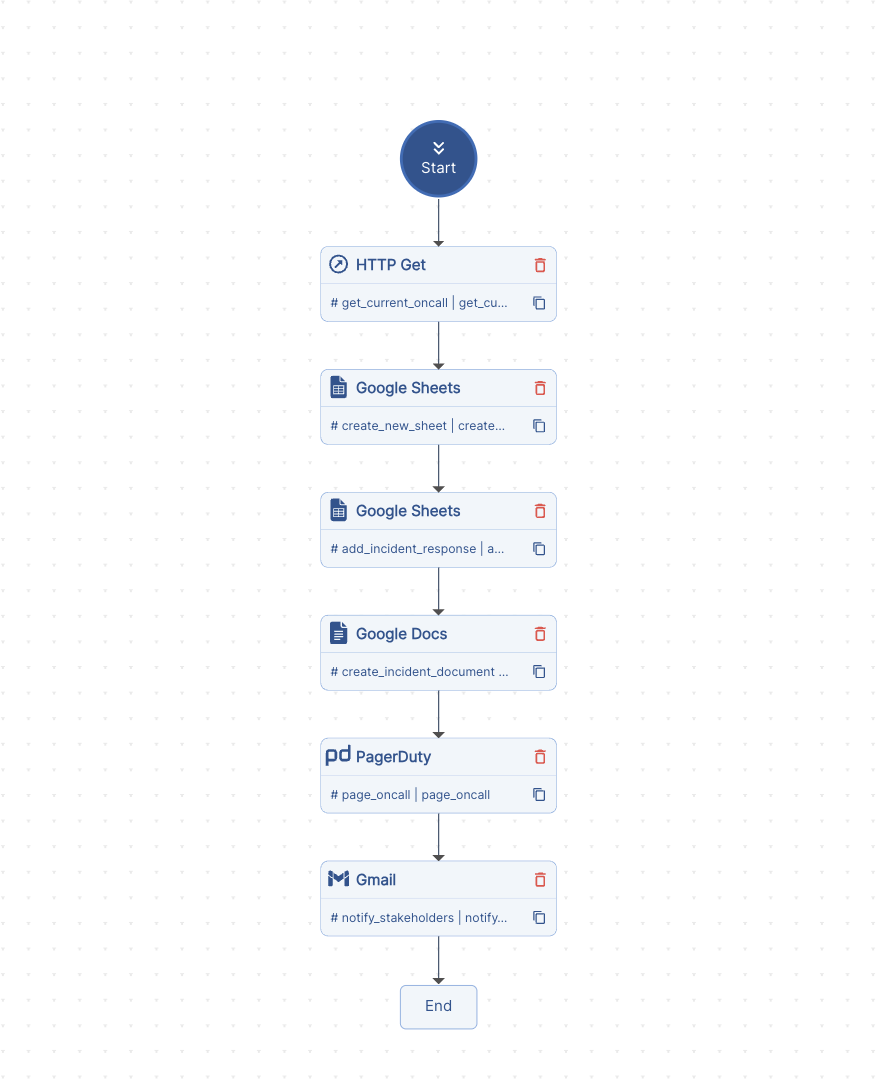
The workflow is simple:
incident event
  -> get_current_oncall
  -> create_new_sheet
  -> add_incident_response
  -> create_incident_document
  -> page_oncall
  -> notify_stakeholders
Each step does one thing:
get_current_oncalllooks up the current on-call owner.create_new_sheetcreates a shared incident tracker in Google Sheets.add_incident_responsewrites the incident details into the sheet.create_incident_documentgenerates a Google Doc for notes and updates.page_oncalltriggers PagerDuty when escalation is needed.notify_stakeholderssends a stakeholder email with links to the sheet and doc.
Workflow definition
This is the workflow shape used in the post:
orgId: 1
namespace: incident-management
name: incident_response_automation
version: 1
type: API_ORCHESTRATION
steps:
  - name: get_current_oncall
    type: HTTP
    input:
      method: GET
      url: https://devs.unmeshed.com/api/call/get_current_oncall/get_current_oncall/fixed?apiCallType=SYNC
  - name: create_new_sheet
    type: INTEGRATION
    input:
      type: google-sheets
      publishProperties:
        action: CREATE_SPREADSHEET
        title: New Incident Created
  - name: add_incident_response
    type: INTEGRATION
    input:
      type: google-sheets
      publishProperties:
        action: APPEND_ROWS
        spreadsheetId: "{{ steps.create_new_sheet.output.spreadsheetId }}"
        range: Sheet1!A1
        values:
          - [
              IncidentId,
              Severity,
              Service,
              Message,
              Status,
              AssignedTo,
              CreatedAt,
            ]
          - [
              "{{ context.incidentId }}",
              "{{ context.input.severity }}",
              "{{ context.input.service }}",
              "{{ context.input.message }}",
              OPEN,
              "{{ steps.get_current_oncall.output.response.output.oncall }}",
              "{{ context.created }}",
            ]
  - name: create_incident_document
    type: INTEGRATION
    input:
      type: google-docs
      publishProperties:
        action: CREATE_DOC
        title: New Incident Document
  - name: page_oncall
    type: INTEGRATION
    optional: true
    input:
      type: pagerduty
      messageBody:
        event_action: trigger
        dedup_key: "{{ context.input.message }}"
        summary: "{{ context.input.message }}"
        severity: "{{ context.input.severity }}"
        source: "{{ context.input.service }}"
        links:
          - href: https://docs.google.com/spreadsheets/d/{{ steps.create_new_sheet.output.spreadsheetId }}
            text: View Incident Report
          - href: https://docs.google.com/documents/d/{{ steps.create_incident_document.output.docId }}
            text: View Incident Document
  - name: notify_stakeholders
    type: INTEGRATION
    input:
      type: google-gmail-read-send
      publishProperties:
        action: sendEmail
        subject: A New Incident Reported
        to: "{{ variables.stakeholdersSharedEmail }}"
        bodyContentType: html
Workflow output
These screenshots show the result of each integration after the workflow completed.
Sheets data
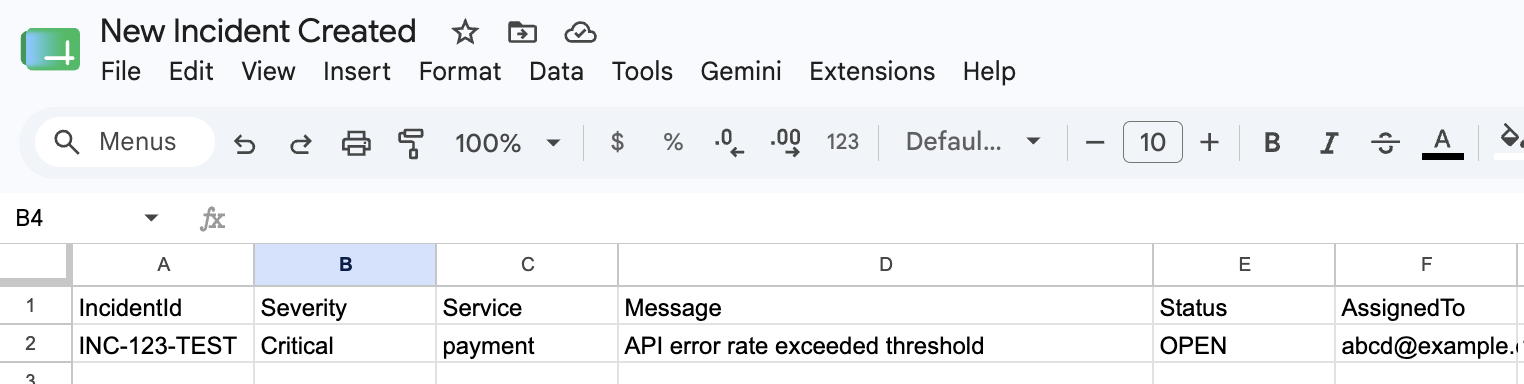
This is the row that got written into Google Sheets. It keeps the incident id, severity, service, message, status, assignee.
Docs data
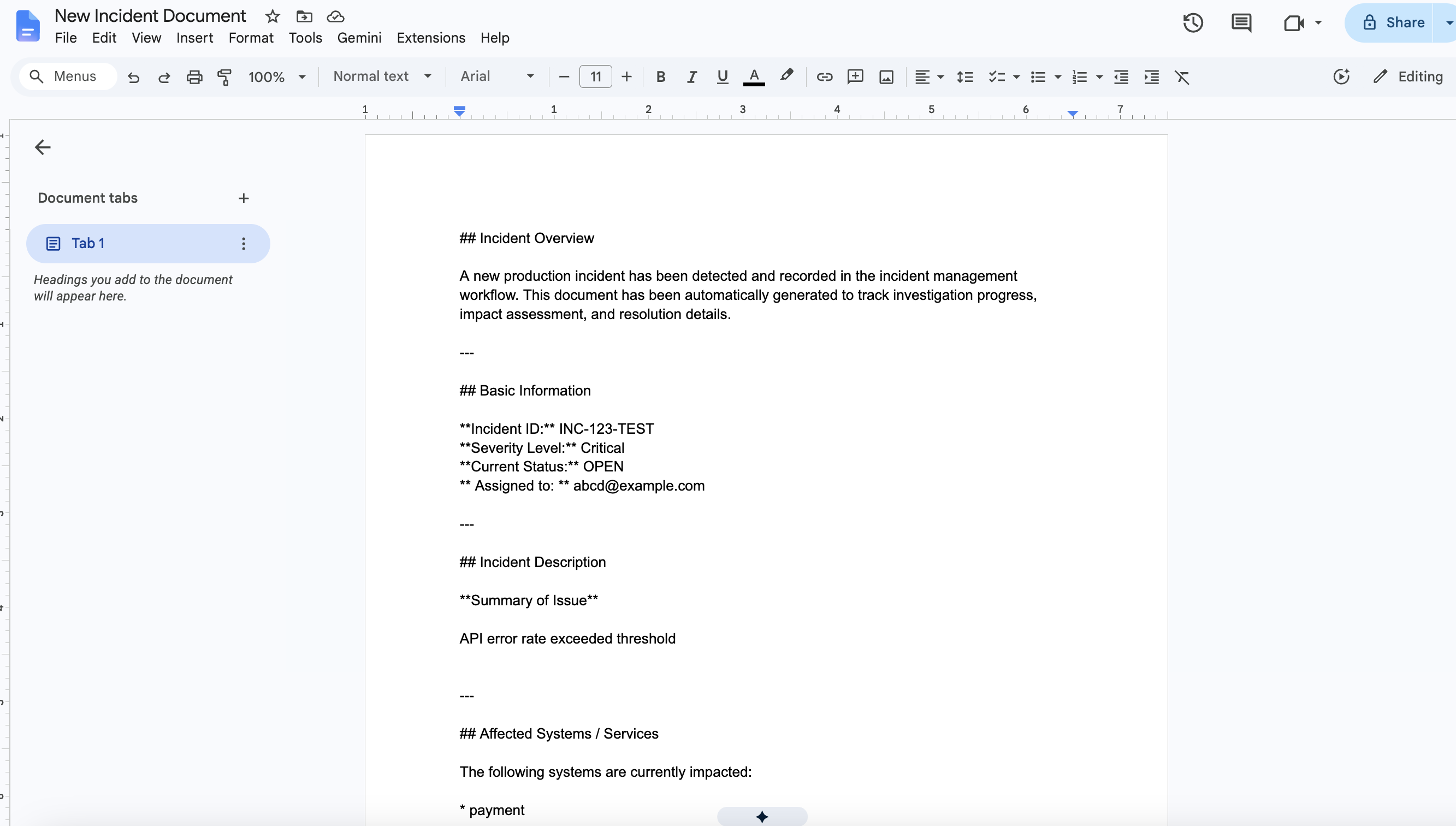
This is the Google Doc the workflow created for the incident. It gives the team a place for the summary, affected service, assigned owner, and follow-up notes.
Gmail message
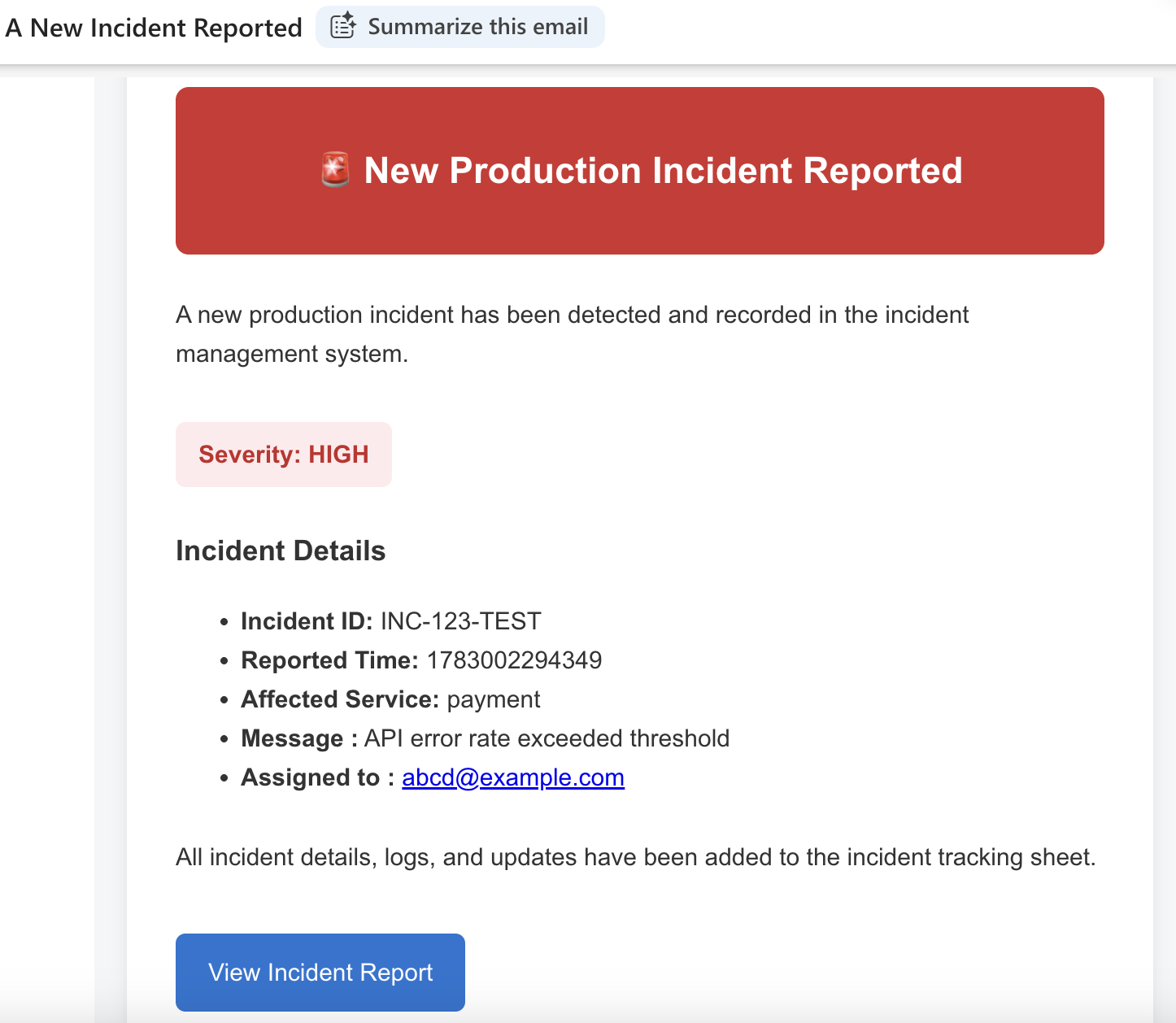
This is the email that was sent to stakeholders. It includes the incident details plus links to the sheet and the doc so people can open the right record immediately.
Integration setup
These are the two setup screens that matter most.
Google integrations
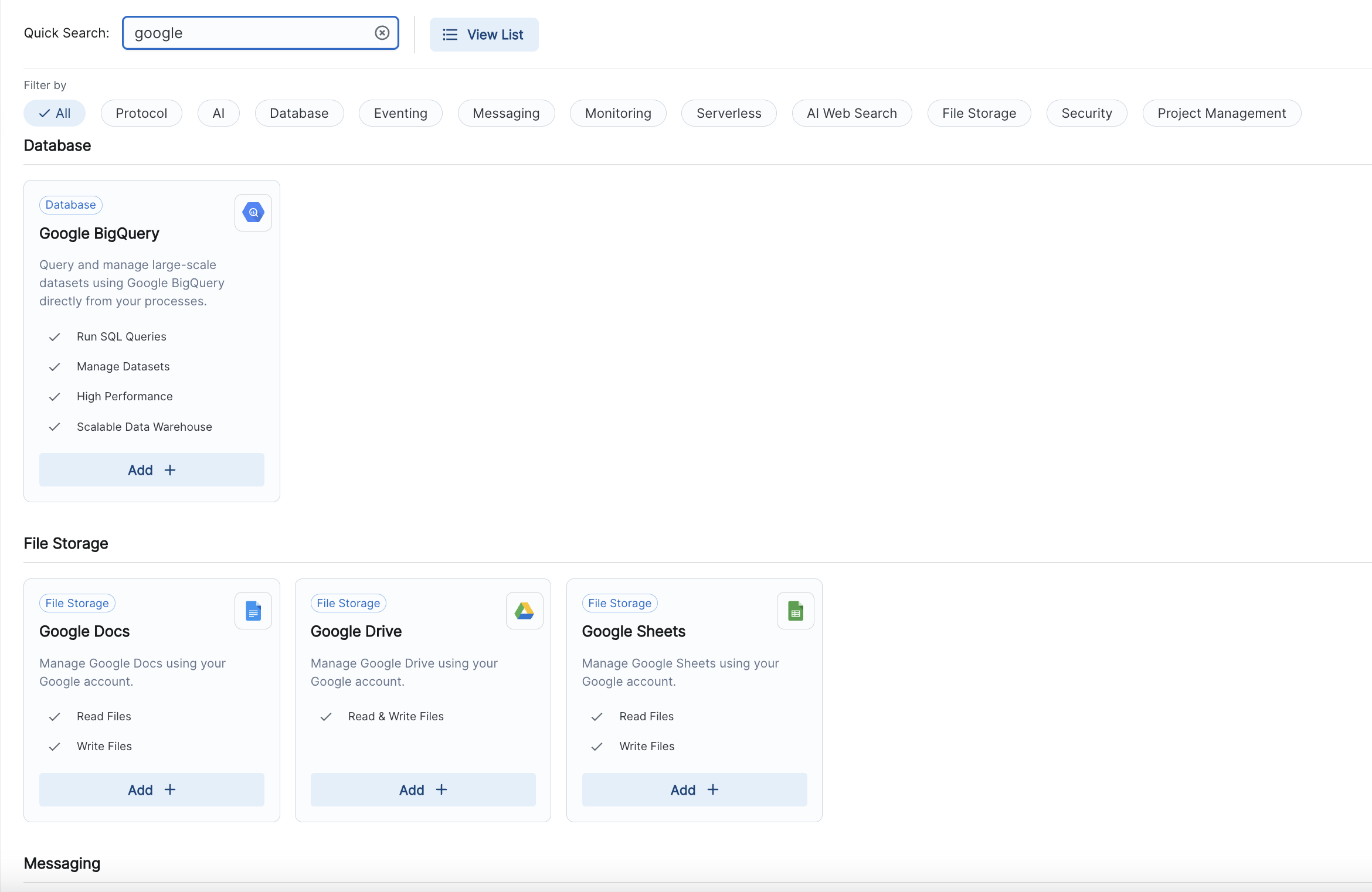
This connects the sheet and doc steps so the incident record and notes go straight into Google Workspace.
PagerDuty integration
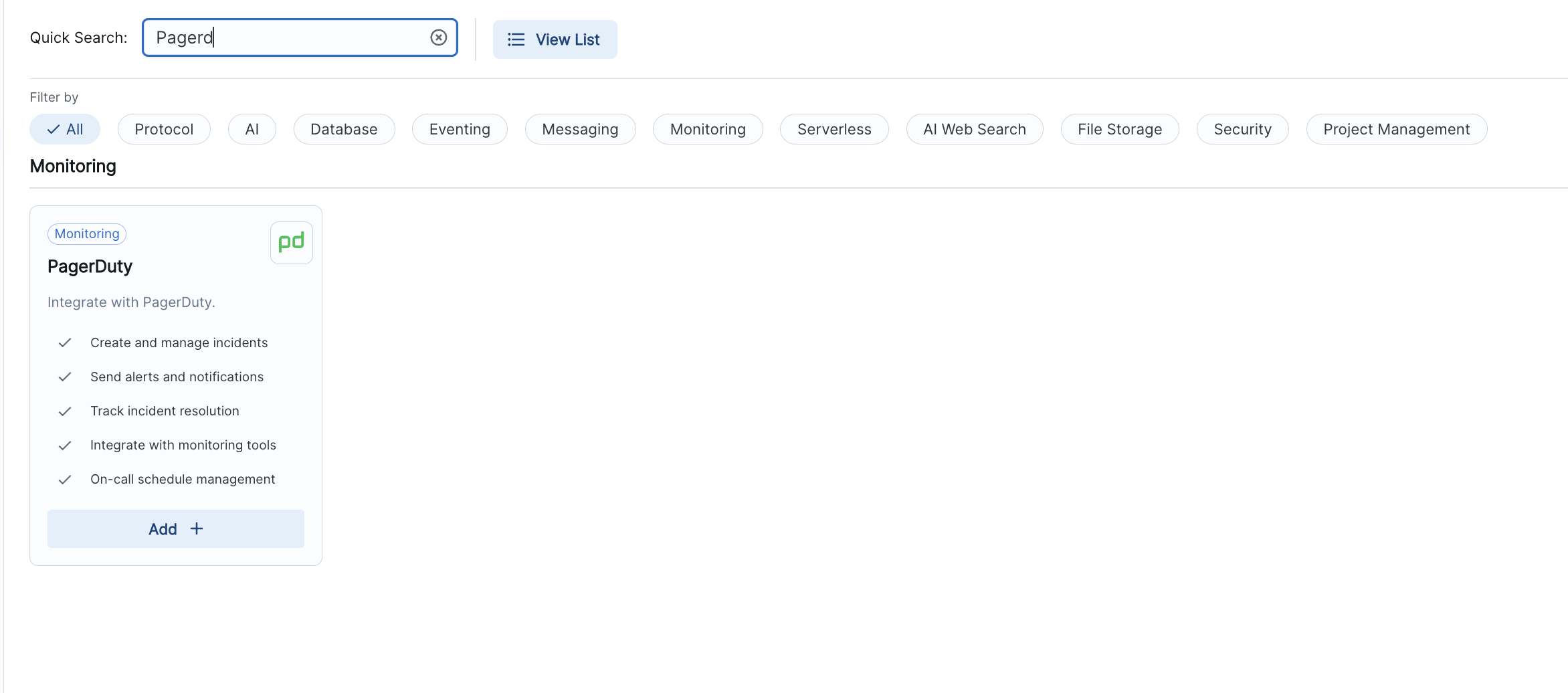
This is the page to the on-call person when the incident needs escalation.
How the flow works
1. Capture the incident
An alert, webhook, or manual trigger starts the workflow with a small payload such as incidentId, service, severity, and message.
2. Find the on-call owner
The workflow checks who is on call and stores it right away so the assignment is visible to everyone working the incident.
3. Create the record
Google Sheets becomes the incident tracker. The workflow creates the sheet, then writes the first row so the team has a shared record right away.
4. Generate the incident document
Google Docs gives the team a place for the timeline, notes, and follow-up. That keeps the details out of chat threads.
5. Page and notify
PagerDuty handles the escalation. Gmail sends the update with the links everyone needs.
Why this version is better
- You create the sheet first, before anything else needs it. The page to on call links straight back to both the sheet and the doc, using the IDs Google returns when each one gets created.
- The sheet and the doc give your team one place to check what happened. Nobody has to dig through old messages to find the incident owner.
- The page to on-call and the stakeholder email pull from the same incident record. Both use the same ID, severity, service, and message. You enter these details once, and every downstream step uses that same data.
- Each integration does one job. The sheet step writes rows. The doc step creates a doc. Nothing tries to do two things at once, so the workflow stays easy to follow.
Practical notes
- Keep the header row fixed at Sheet1!A1. Every row you add after that lands in the wrong column if the header shifts.
- Use a doc template with placeholders for the summary, owner, and timestamps. Fill them in as the incident happens.
- Add the PagerDuty step only when the incident needs escalation. It's marked optional in the workflow for that reason.
- Include the sheet and doc links in the stakeholder email. Your team can check the record themselves instead of asking for updates.
Closing
Incident response doesn't need to be a pile of scripts and handoffs. A small workflow handles all of it. It catches the incident and assigns the owner, then creates the record and notifies the right people. No extra coordination needed.
If you want to turn your own incident process into a workflow, this is the shape to start with.
If your team still jumps between chat, sheets, docs, and pages, Unmeshed can keep the response path in one place.
We can help map your on-call, escalation, and notification steps into a single workflow.